

Creating a model
Explained using my relais model. All downloads mentioned or missing here can be found there.
So how do you create a model file from a circuit diagram?
- A model does not contain a simulation command! This must be specified in the higher-level plan.
- It may contain voltage sources (e.g., for supplying internal components or as an offset voltage), but all voltages fed in for simulation purposes exist only as connections and must be supplied in the higher-level schematic. Otherwise, they couldn't be changed!
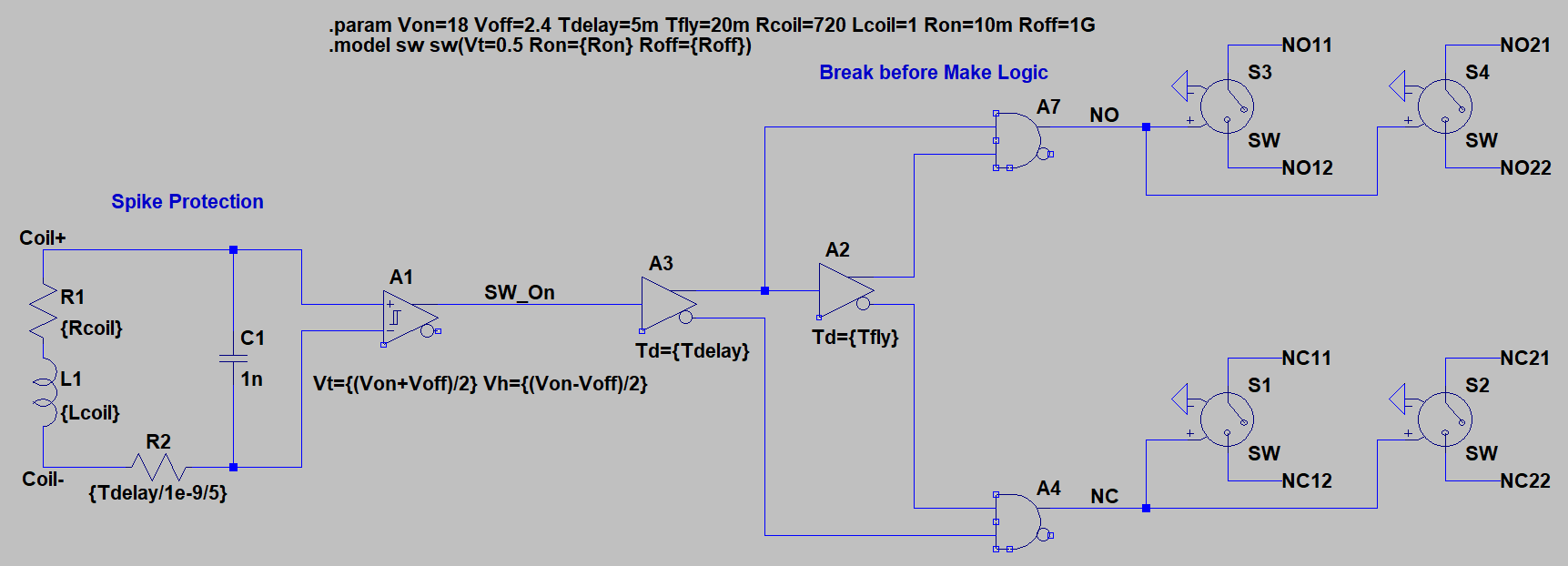 Here is the circuit diagram of my relay model.
As is probably the case in most cases, I distilled
it from a functioning circuit.
This means that there was originally a single, functional circuit that also included supply voltages, lights
on the contacts, a voltage source as a signal input, and of course a simulation command.
It was originally a working simulation, which I used to test the circuit and verify its correct function.
But everything that is not directly part of the model must now be removed.
Starting with the simulation command, until only two connections remain for the input voltage and the connections of the bare
contacts.
All parameters defined in the instructions above can be overwritten with different values later when the model is used. If not, they will retain the values entered here.
Now we are at the point where we can create the model file.
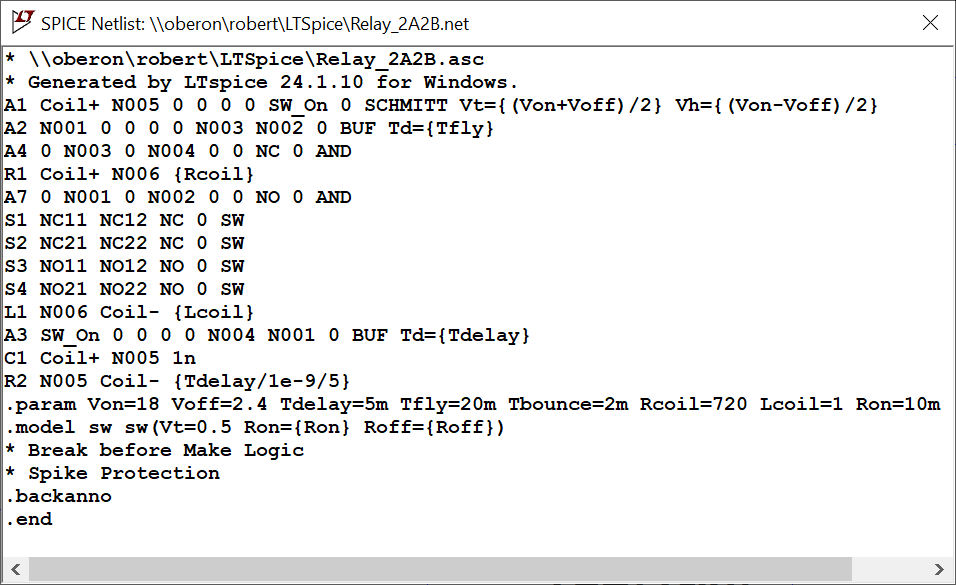 In LTspice, display the netlist (View->Update and View Spice Netlist) and copy everything into the text editor of your choice.
Delete all comments (lines starting with * and the lines .backanno and .end.
I moved the lines .param ... und .model ... to the top since this seemed more logical to me.
Insert a first line .SUBCKT Relay_2A2B Coil+ Coil- NO11 NO12 NC11 NC12 NO21 NO22 NC21 NC22.
The first parameter is the name of the model; the following specify the names of the nets required for the use of the model (here the coil and all contacts).
These nets have been named accordingly in the circuit diagram. This is important because otherwise they would change arbitrarily after every modification of the circuit diagram!
Insert as a last line a .ends and save it as modellname.sub, that's all.
Of course, you can (and should) add comment lines beforehand, explaining, for example, what the model does, what it does not do or can not do, and of course when and from whom it is from, as well as a version number, license terms, etc.
File Format
If you encounter inexplicable error messages, this could be due to the use of an incompatible file format.
I use Notepad++ as editor. It is advisable to ensure ANSI encoding is used; the menu option Encoding > Convert to ANSI
can be helpful.
You should also select the Unix line ending format: Edit > EOL Conversion > UNIX (LF)
.
To finally use this model we also need a
Symbol
The symbol can be drawn quite easily with LTspice. Pins can also be added easily. Make sure that the pin labels correspond to the net names from the .SUBCKT ....
If possible, arrange the pins in the same order as they appear in the .SUBCKT. The editor assigns a sequential SpiceOrder
to each pin, corresponding to its position in the .SUBCKT line. It is this value – not the net name – that determines the mapping of pins to signals within the model!
You can change the SpiceOrder at any time by right-clicking on a pin (where it is labeled Netlist Order
). Alternatively, you can edit the file in a text editor, which, in my opinion, is faster and easier.
In our example, for instance, Coil-
would need to have a SpiceOrder of 2, since it is the second net name listed in the .SUBCKT.
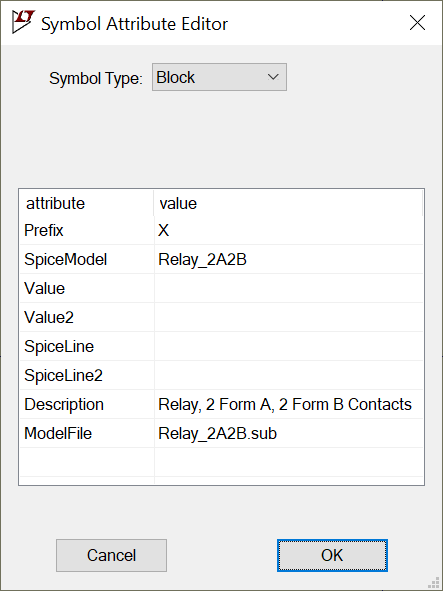 Under Edit->Attributes->Edit Attributes you still need to make a few entries:
- The prefix must be
X
. This tells LTspice that it is not a basic component (resistor, capacitor, etc.), but one that is described by a model. - SpiceModel is the name as specified in .SUBCKT ....
- Under Description you can describe the model
- ModelFile is ultimately the filename of the model that we have just created.
The model file must be stored in a search path for models, either directly in the LTspice sub directory or, better yet, in a directory that you have additionally specified under Settings->Search Paths.